BSS Mollie Payment
Created on: Apr 09, 2026
PRE-REQUISITES
-
The plugin requires you to install the BSS Core plugin first.
INSTALLATION
-
Go to the Order Details Page and Download plugin package
-
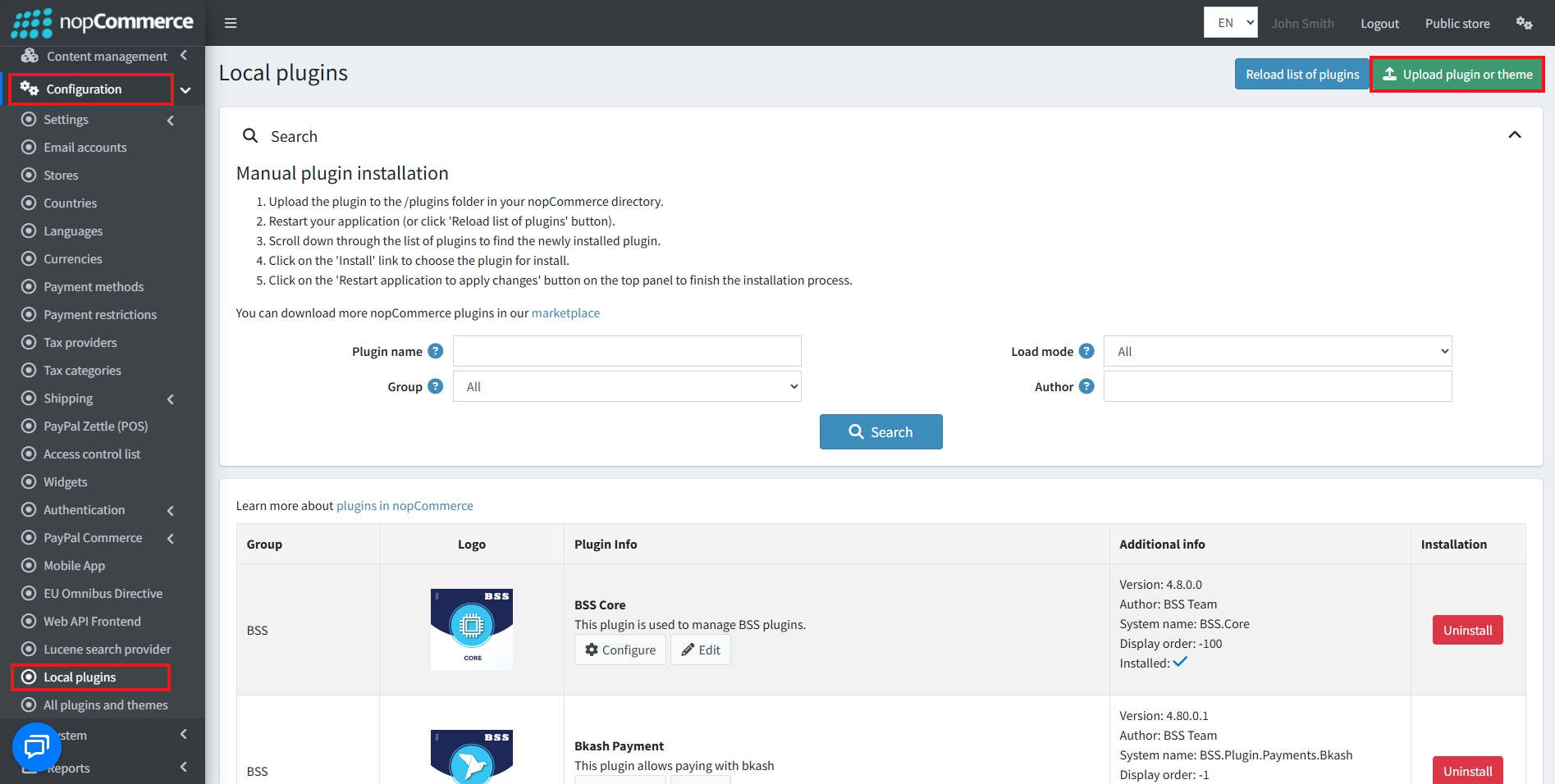
Go to Administration → Configuration → Local plugins
-
Within the bundle, you get all the required files, including BSS.Core
-
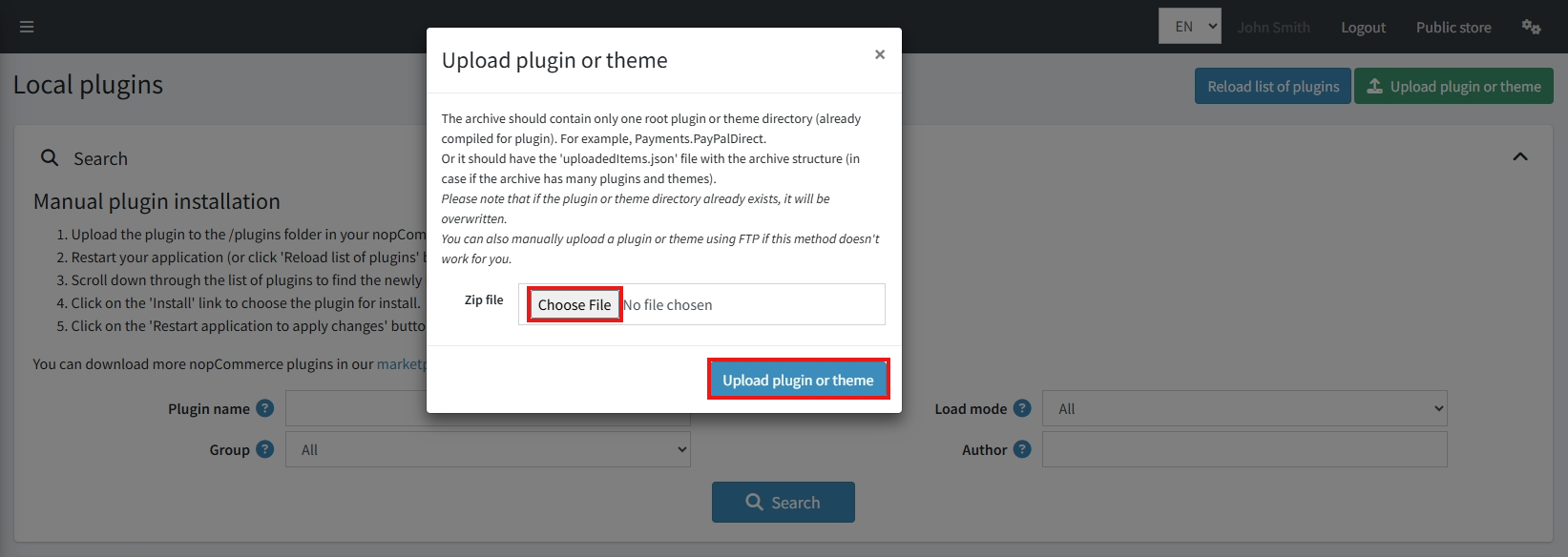
Upload the zip files using the ‘Upload plugin or theme' button
-
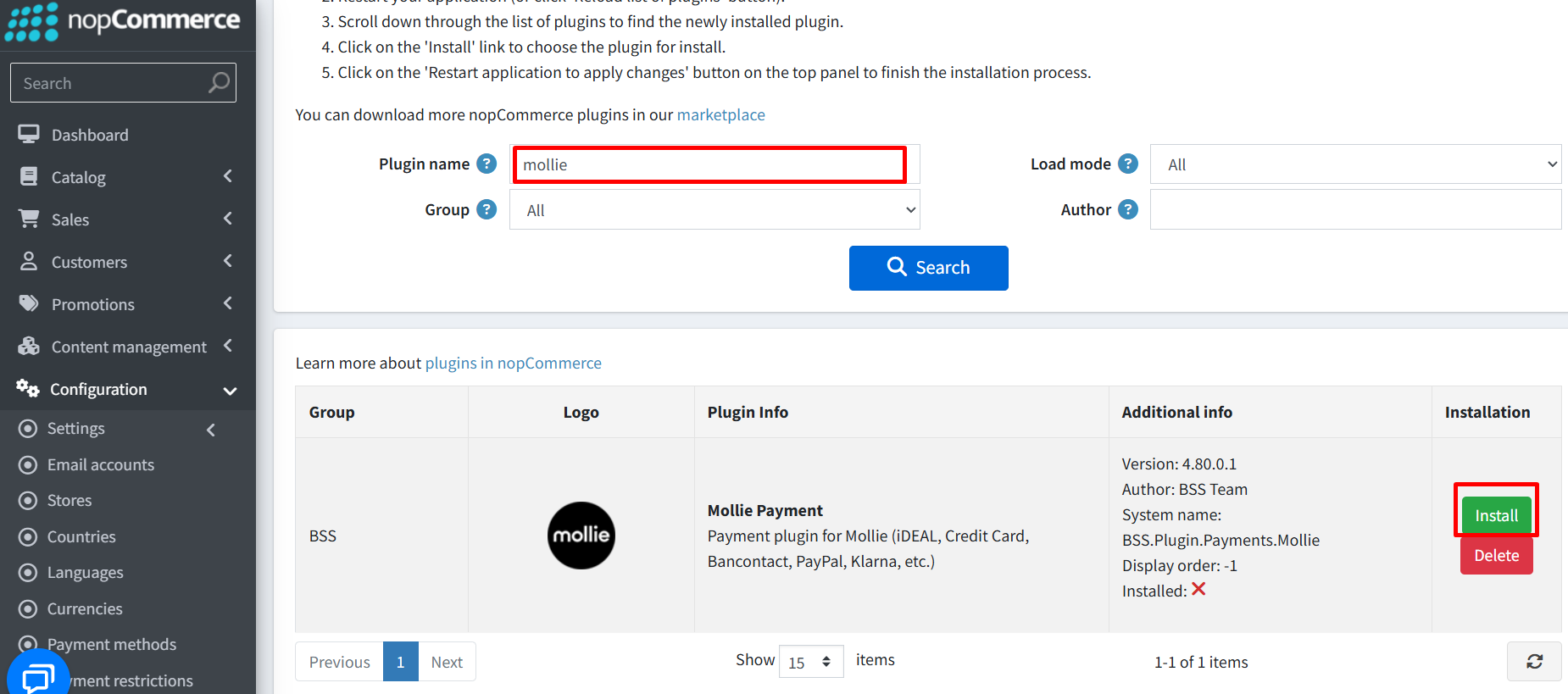
After uploading, install the ‘BSS Core' Plugin first
-
Then scroll down or use the search bar to find and install ‘BSS Mollie Payment'
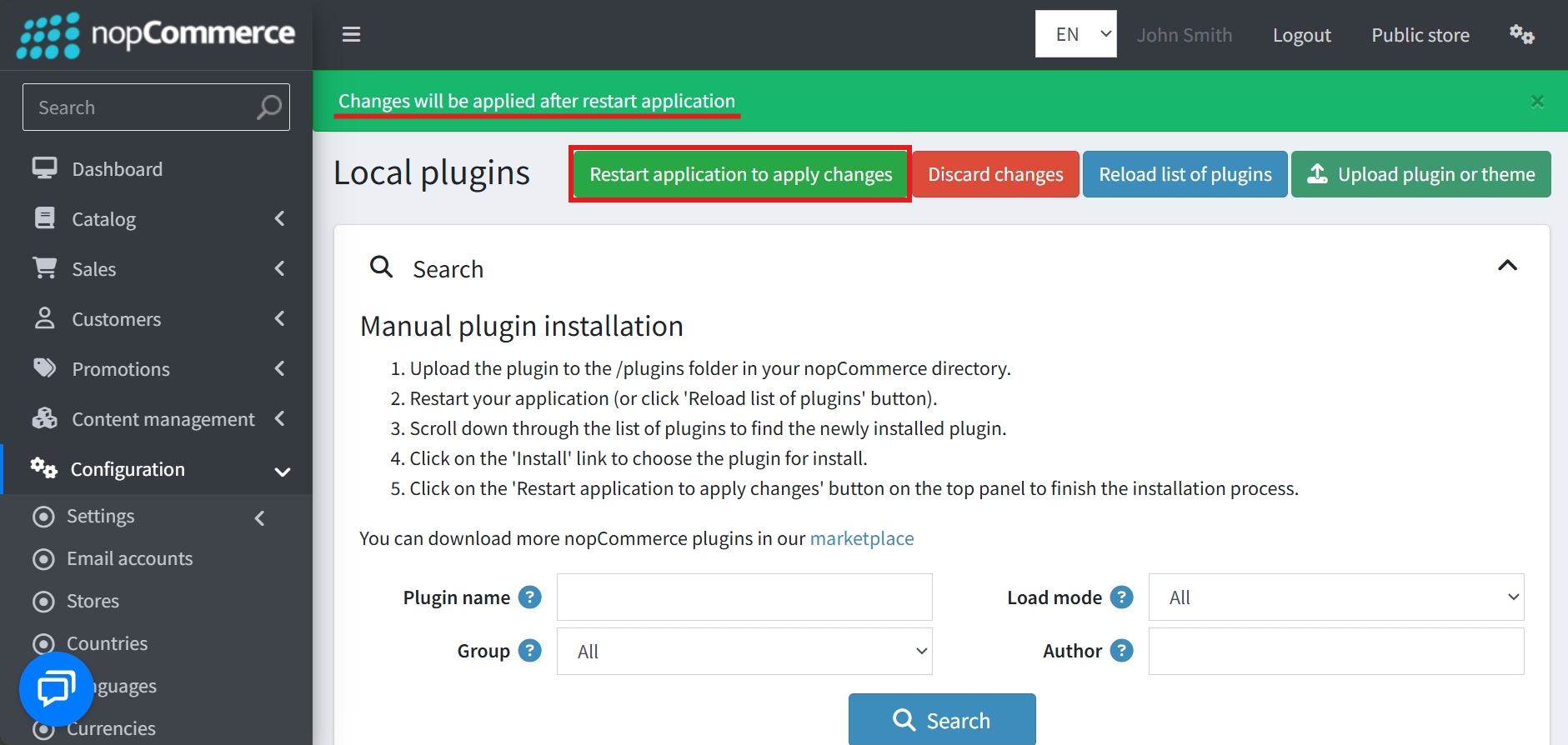
- To activate the plugins, restart the application
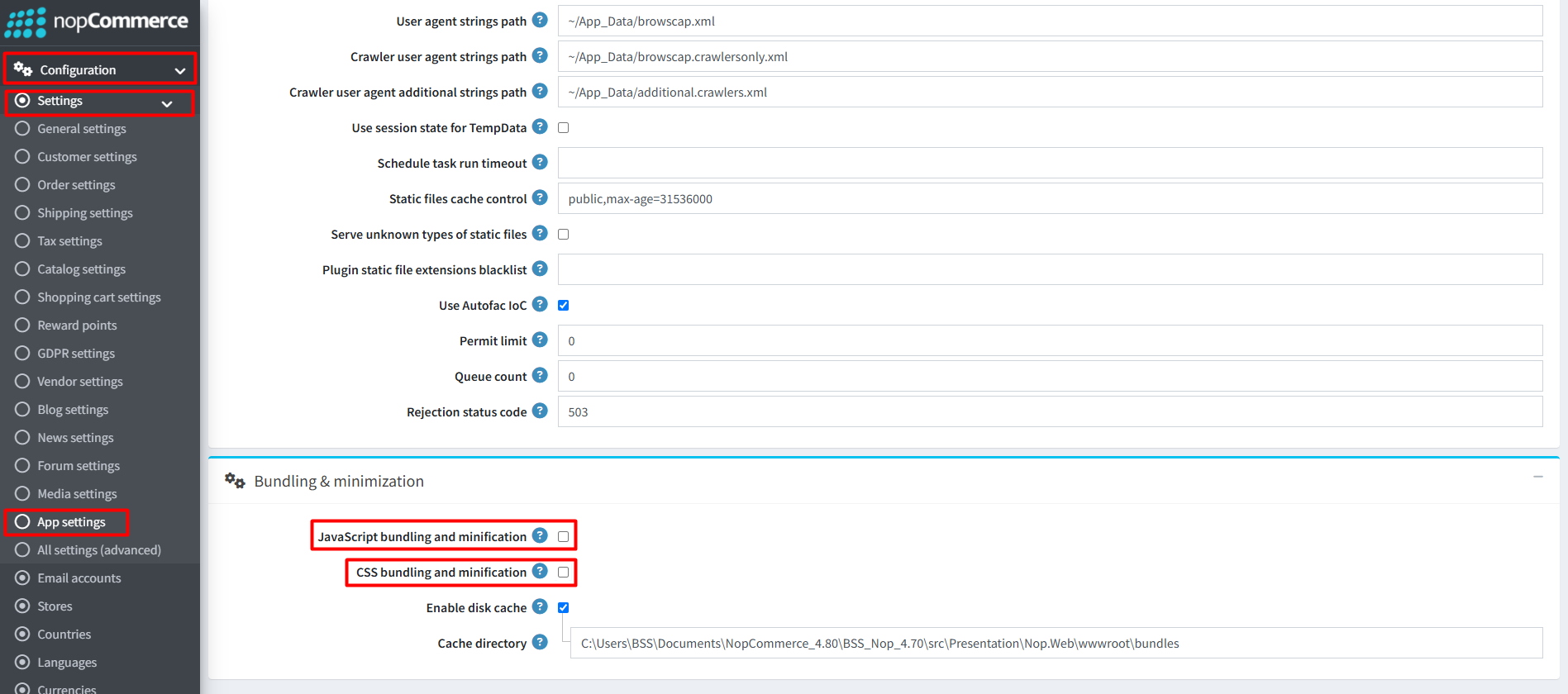
Recommendation: Go to > App Settings. If you find JavaScript bundling and minification, CSS bundling and minification are checked, then uncheck these two options and disable them.
CONFIGURE
-
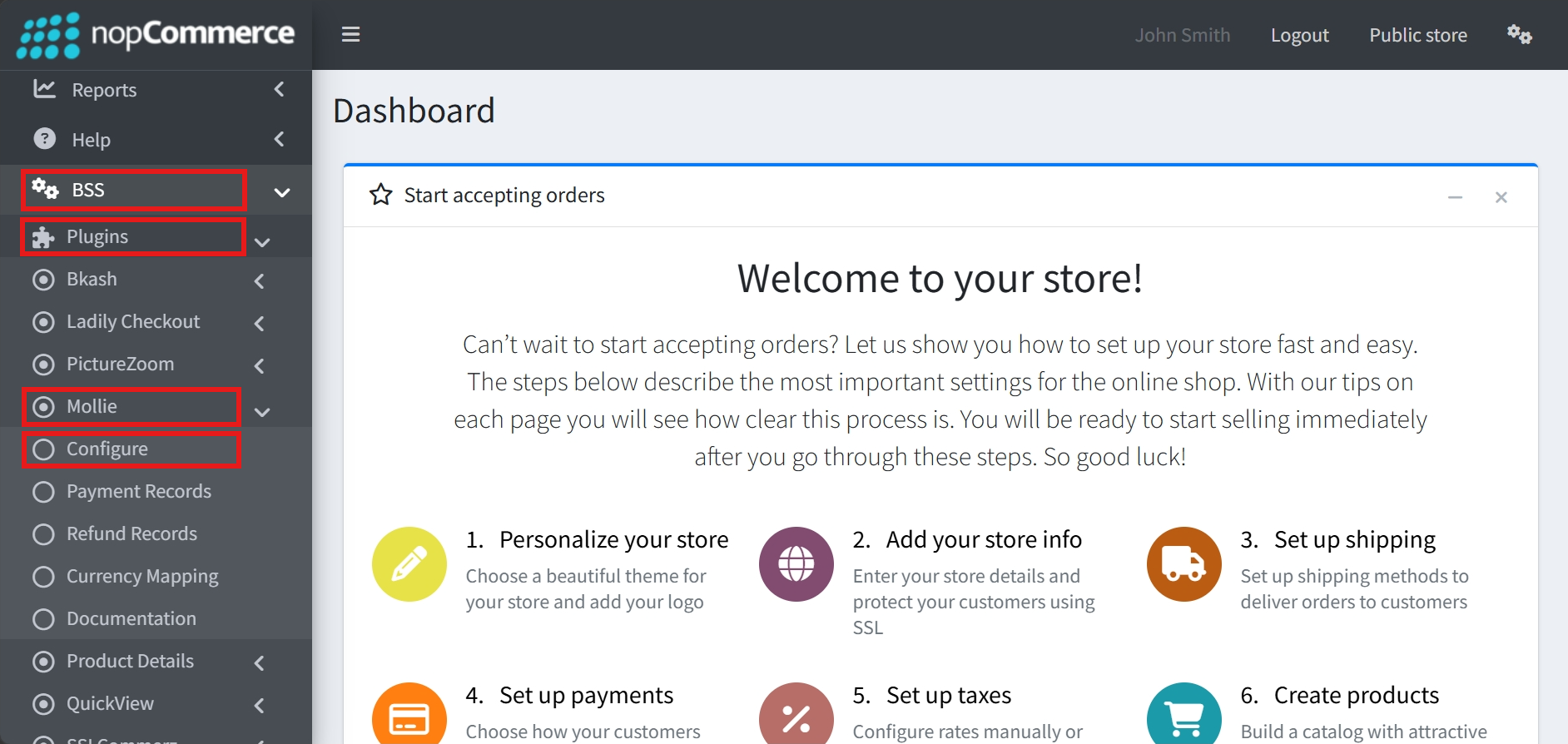
Go to Admin → BSS → Plugins → Mollie → Configuration
-
Enter the License string and save it. Then clear cache

-
Then again go to BSS → Plugins → Mollie → Configuration to set the configuration
API CONFIGURATION
-
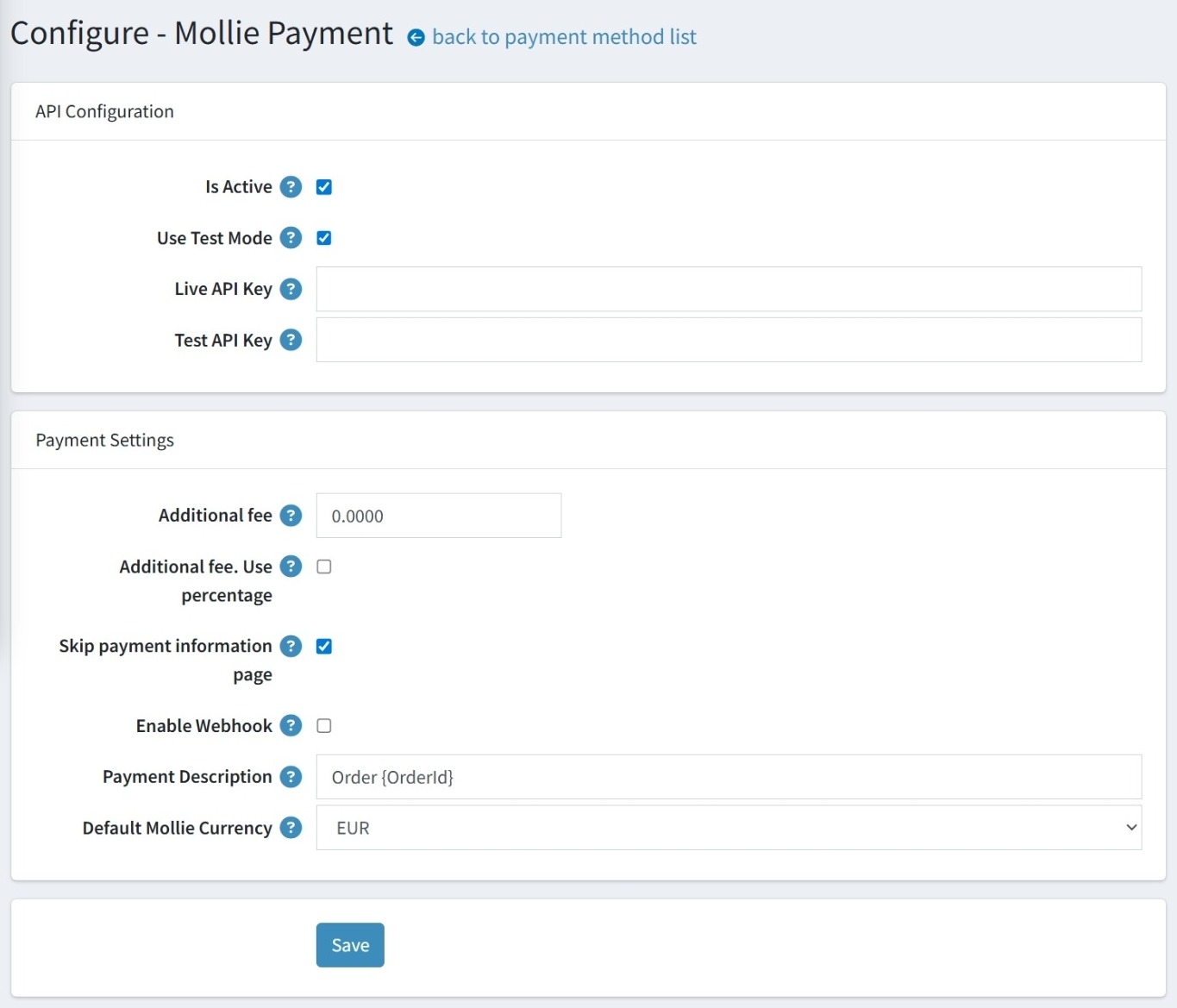
Check the Is Active box to enable or disable the Mollie payment method for your store.
-
Toggle the Use Test Mode box to switch the plugin between live and testing environments.
-
Enter your production API key provided by Mollie in the Live API Key field.
-
Enter your testing API key in the Test API Key field to verify transactions safely.
PAYMENT SETTINGS
-
Set an extra charge for customers who choose to pay via Mollie in Additional Fee.
-
Check the Additional fee. Use percentage box to set the extra charge as a percentage of the order total, rather than a fixed amount.
-
Enable Skip Payment Information Page to streamline the checkout process by bypassing the payment info step..
-
Check the Enable Webhook box to receive real-time payment status updates directly from Mollie.
-
Customize the text displayed on the Mollie dashboard in the Payment Description field.
-
Select your primary transaction currency (e.g., EUR) from the Default Mollie Currency dropdown menu.
- Click Save to apply the configuration.
CURRENCY MAPPING
- Go to Admin → BSS → Plugins → Mollie → Currency Mapping to view your existing configurations in the Currency Mapping List.
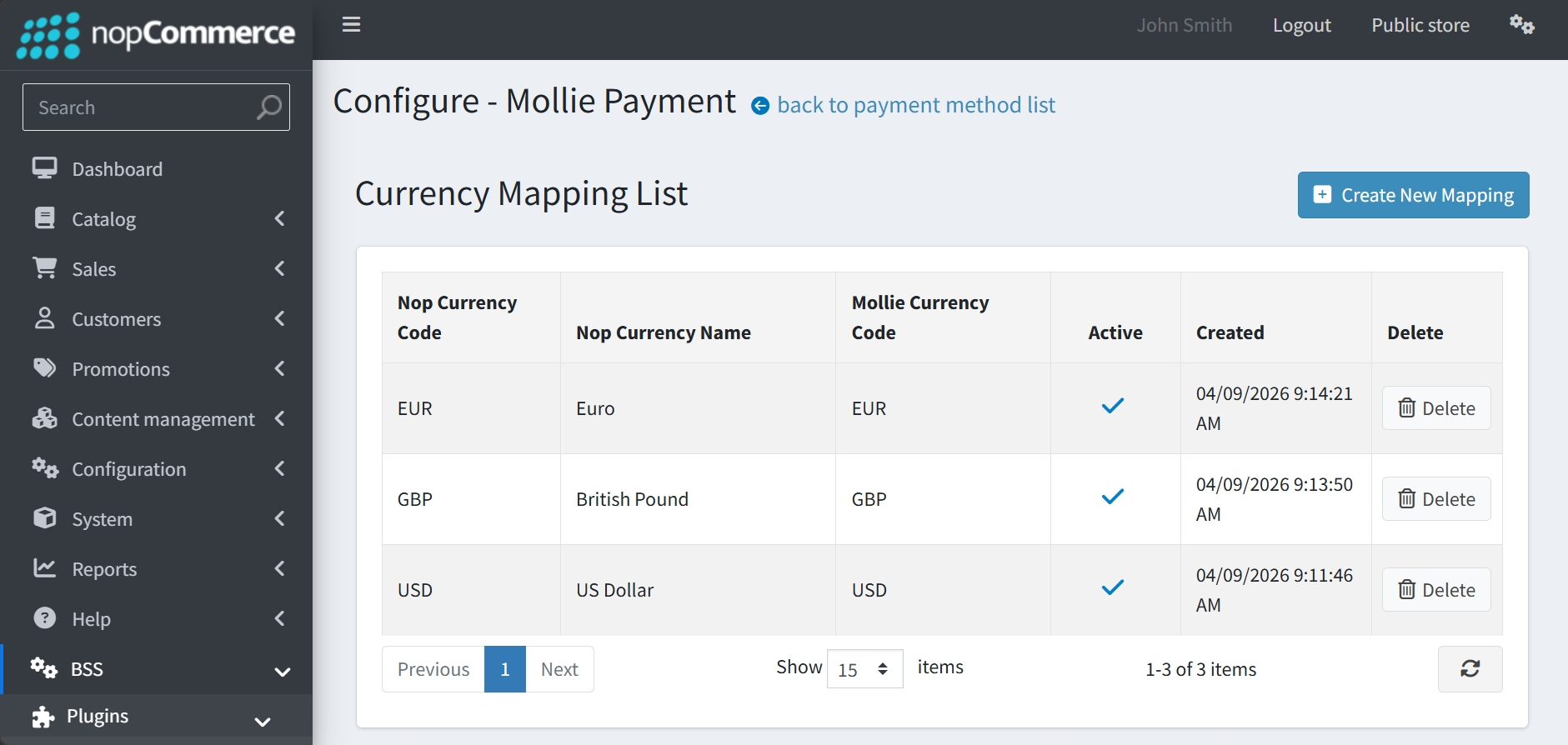
- The Currency Mapping List tracks the nopCommerce currency code and name, the corresponding Mollie currency code, its active status, and the date it was created.
-
Use the Delete button in the list view to remove any specific mapping that is no longer required.
-
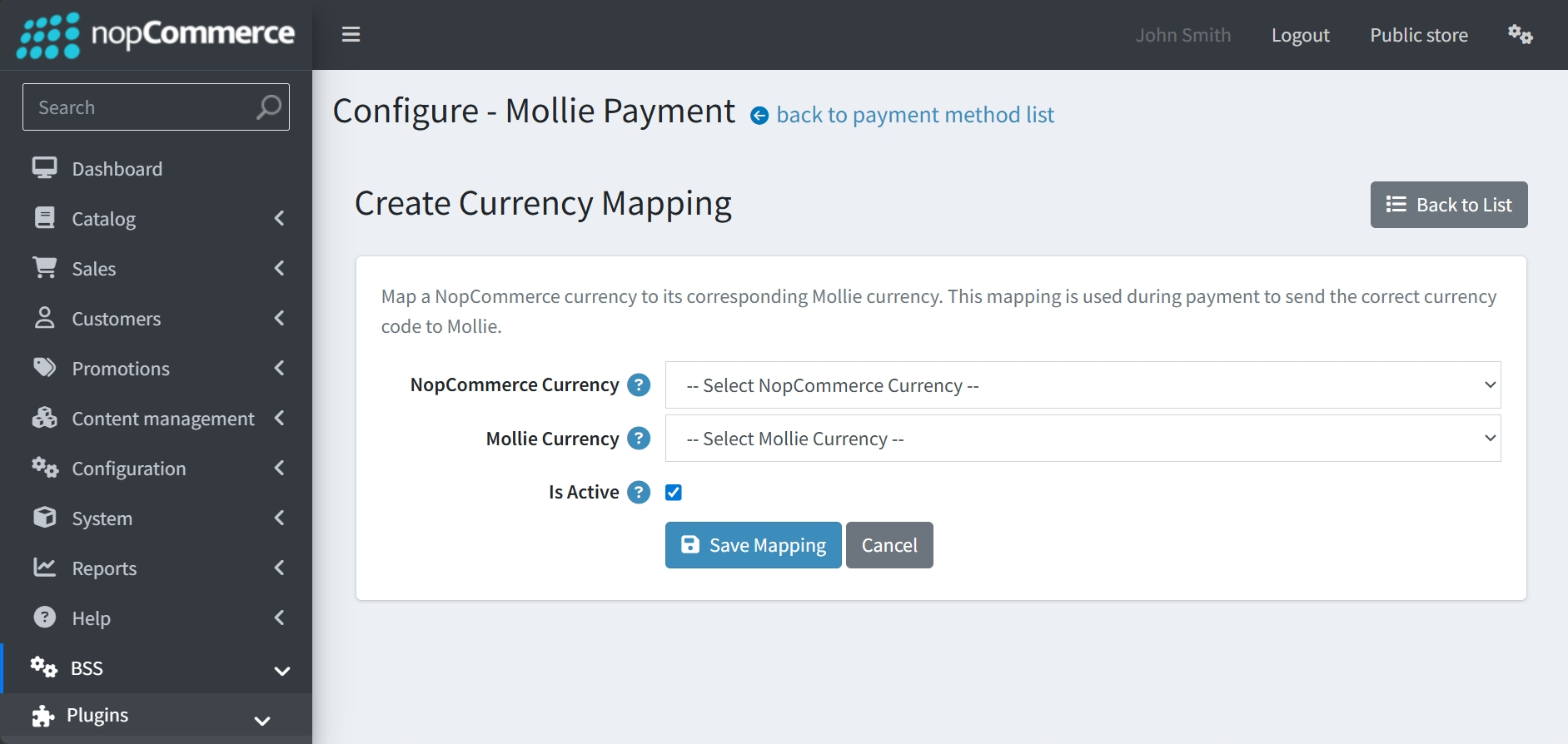
Click the Create New Mapping button at the top right to begin a new configuration.
-
Select your store's currency from the NopCommerce Currency dropdown menu.
-
Choose the corresponding Mollie currency from the Mollie Currency dropdown to link the two systems.
-
Check the Is Active box to ensure this mapping is utilized during the checkout process.
-
Click Save Mapping to finalize the setup and add it to your active list.
PAYMENT RECORDS
-
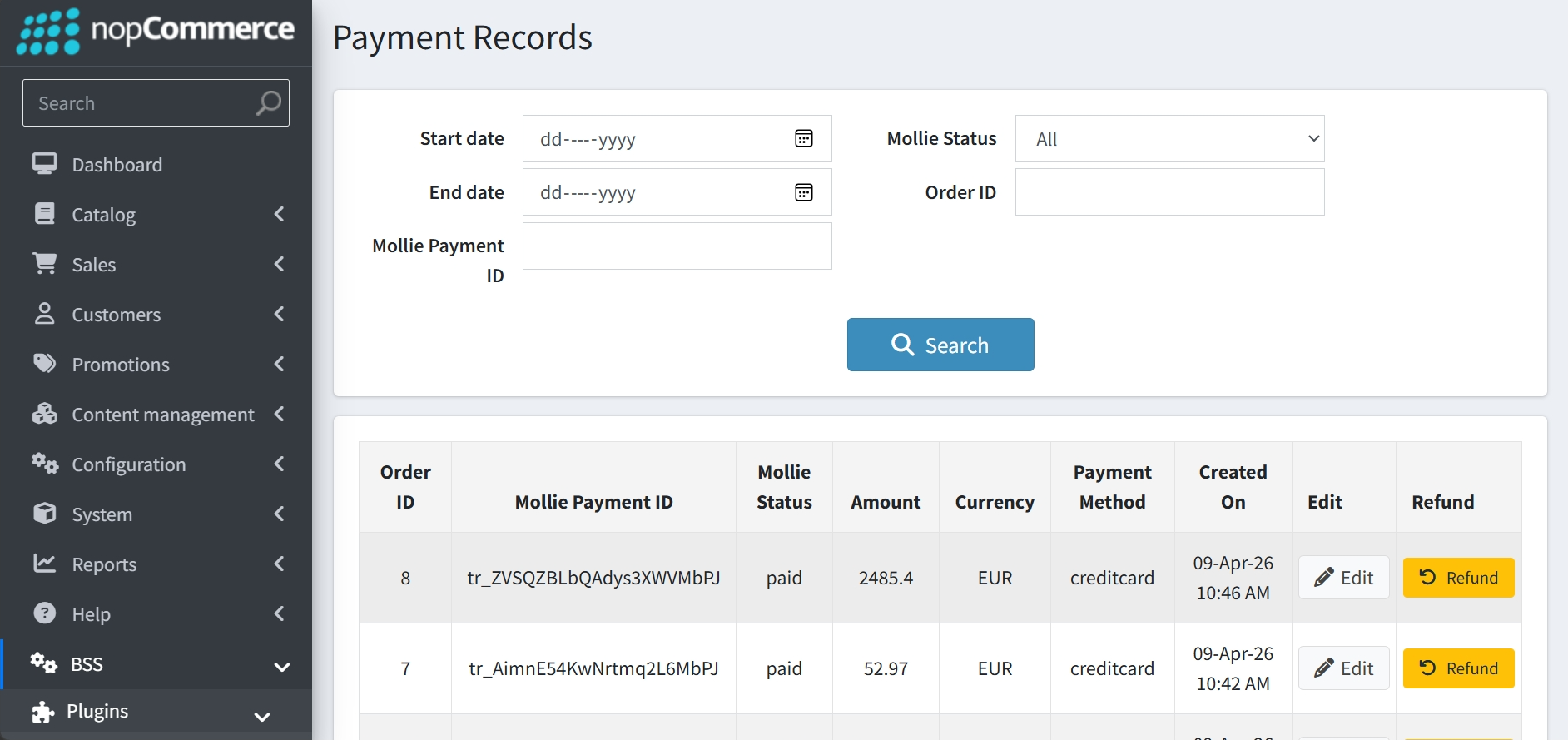
Go to BSS → Plugins → Mollie → Payment Records to view a comprehensive log of all transactions processed through the Mollie gateway.
-
Filter your search using criteria such as Start date, End date, Mollie Status, Order ID, or the specific Mollie Payment ID.
-
Review detailed transaction information in the records table, including the Amount, Currency, Payment Method, and the exact date the payment was Created On.
-
Monitor the real-time status of your transactions (e.g., "paid") directly from the Mollie Status column.
-
Modify record details by clicking the Edit button for any specific entry.
-
Initiate a refund for any successful transaction by clicking the Refund button located in the final column of the table.
REFUND RECORDS
-
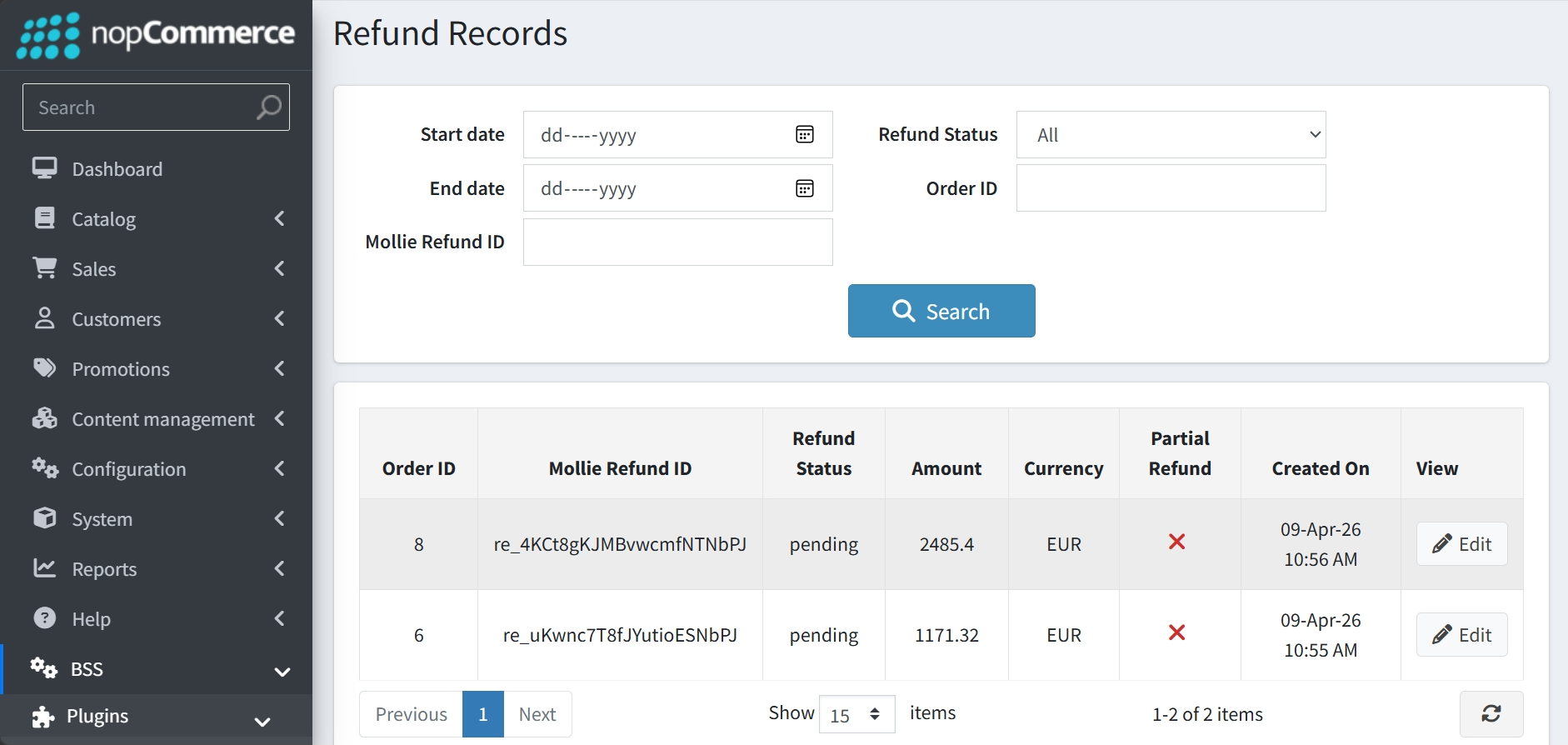
Go to BSS → Plugins → Mollie → Payment Records to track and manage all return transactions.
-
Search for specific refund entries by filtering for Start date, End date, Refund Status, Order ID, or the Mollie Refund ID.
-
Track the progress of refunds (e.g., "pending") through the dedicated Refund Status column.
-
Examine specific refund details such as the Amount, Currency, and the creation timestamp for each entry.
-
View or update refund information by clicking the Edit button associated with the specific record.
PUBLIC VIEW
FEATURES
-
Webhook Support: Receive instant status updates directly from Mollie to keep your records synchronized.
-
Multi-Currency Payments: Accept payments in multiple currencies, making your store ready for global customers.
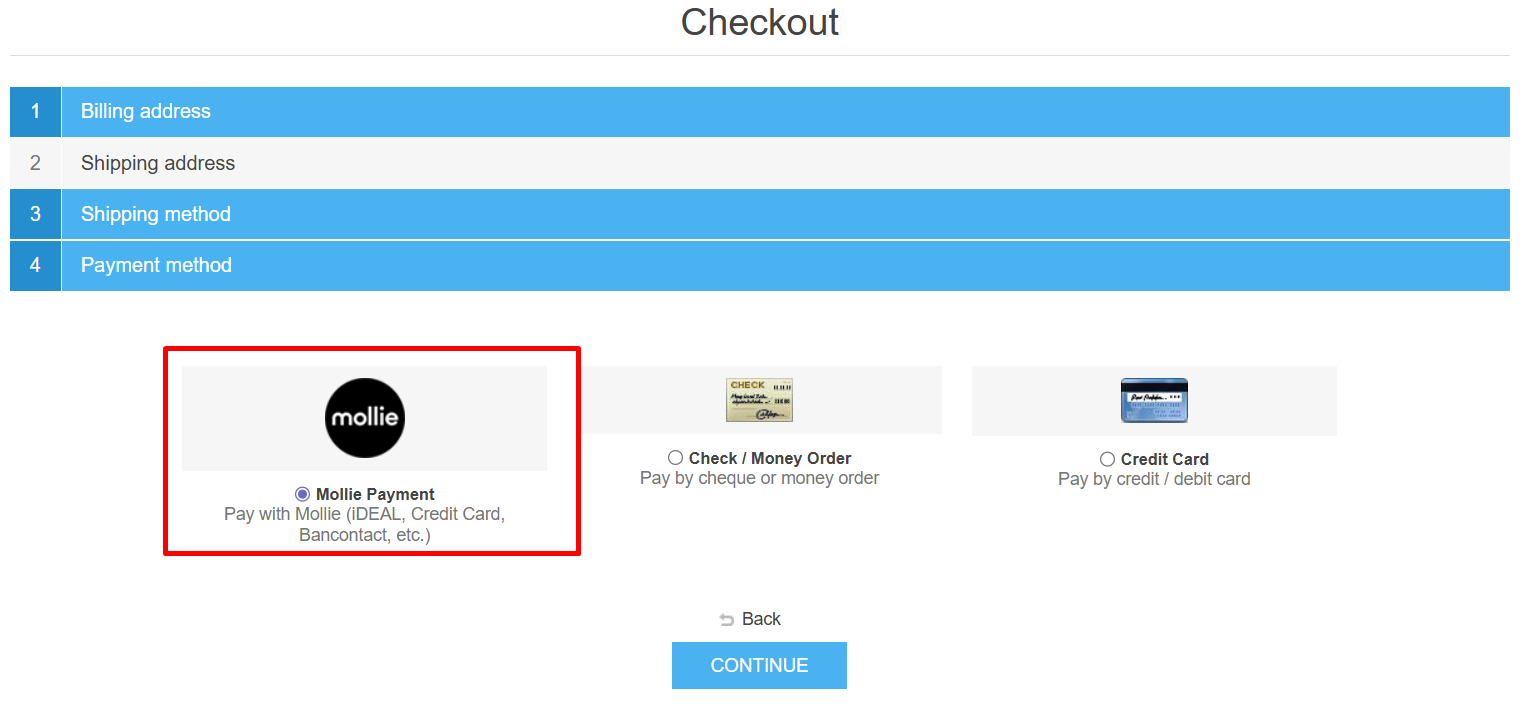
- Popular Payment Methods: Accept leading payment options such as VISA, American Express, Klarna, and more for a seamless checkout experience.
-
Smart Currency Mapping: Link nopCommerce currencies to their corresponding Mollie currency codes to ensure accurate international processing.
-
Centralized Payment Logs: Track every transaction in a centralized Payment Records dashboard, with real-time status monitoring and payment method tracking.
-
Efficient Refund Management: Initiate refunds directly from the payment record list and monitor them in the Refund Records section.
-
Dual Environment Support: Test your payment flow safely in Test Mode before switching to the Live API for production.
-
Customizable Transaction Fees: Apply Additional fees to orders as either a fixed amount or a percentage of the order total.
-
Streamlined Checkout: Speed up the customer checkout journey by choosing to skip the payment information page.